
Okta Verify
Okta Inc.Productivity
4.02.51K Reviews
- Version
- Varies With Device
- Installs
- 10.00M
- Age Rating
- Everyone
Screenshots
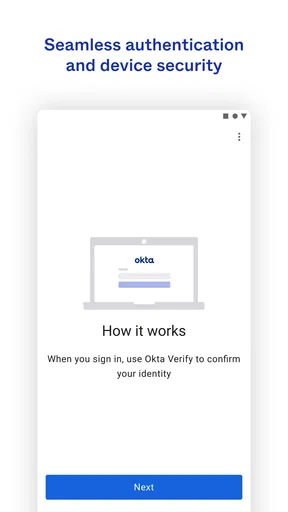
Our Review of Okta Verify
 Analysis by Appyee
I use Okta Verify as a companion to an Okta account rather than as a general-purpose password manager or a standalone security app. Its job is focused: it helps confirm that it is really me when an organization asks for an extra sign-in check. That narrow purpose is also its main strength. I do not open it for notes, password storage, or account browsing; I reach for it when a work or school login needs another layer of verification.
Developed by Okta Inc., this free productivity app has been available since October 4, 2011, and its Everyone age classification makes it approachable for a broad range of users. The app has built a substantial audience, with over ten million installs and an average rating of 4.0 from roughly forty-three thousand ratings. Those figures suggest a mature tool that many people depend on, although they do not remove the need to understand how it fits into the wider Okta sign-in setup.
How Okta Verify feels during everyday sign-ins
I find the everyday sign-in experience easiest to judge by looking beyond the tap itself: the approval only helps when I can connect it to a login I just started and the original session resumes smoothly. That makes a quick check of the full browser-to-phone workflow worthwhile before I depend on it for a time-sensitive task. The next section looks at how repeated prompts and device habits shape that routine.
The speed users should expect
In normal use, the most important performance question is not whether the app offers a long list of options. It is whether the verification step gets out of the way quickly. My impression is that Okta Verify is designed around that short interaction: I open or respond to the verification request, confirm the sign-in when appropriate, and return to the service I was trying to access.
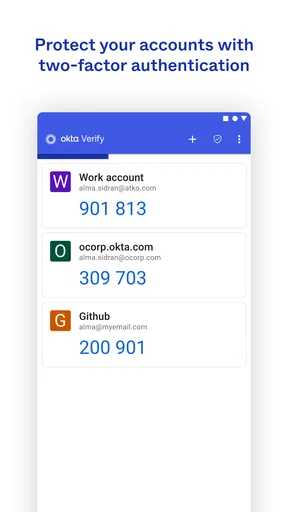
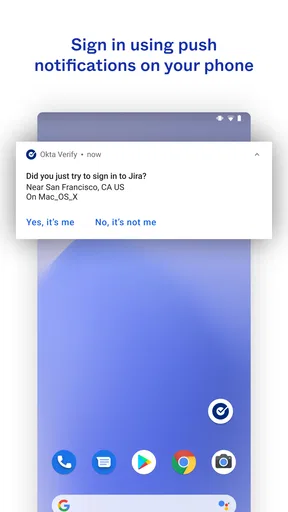
That makes it feel different from an authenticator that is mainly a screen full of rotating codes. With a code-based app, I have to read the current number, switch back to the login page, and enter it before it changes. Okta Verify can be more convenient when the organization’s sign-in flow supports an in-app approval, because the task becomes a decision rather than a small transcription exercise.
There is an important distinction here. The app cannot make the entire login process instant if the delay comes from the organization’s identity system, the network, device notifications, or a browser session. I would judge its speed as part of a chain, not in isolation. When the request arrives promptly, the app feels lightweight. When the request is late, the frustrating part may be the handoff between services rather than the interface itself.
I also appreciate that its focused design avoids the clutter found in broader security suites. There are fewer reasons to wander through the app, and that matters when I am signing in under pressure. A verification tool should make the safe choice obvious without asking me to manage unrelated settings at the same time.
What happens when sign-ins become frequent
The app is especially useful for people who move repeatedly between company tools, learning platforms, or administrative systems during the day. In that situation, a verification prompt can become a routine checkpoint instead of a repeated hunt for a code. I can keep my attention on the task rather than maintaining a separate list of temporary numbers.
A realistic example is a workday in which I start with email, open an internal dashboard, join a browser-based meeting, and later access a document system from a different session. If each service is connected to the same organization’s Okta environment, Okta Verify can serve as the consistent confirmation point. That does not eliminate every login prompt, but it gives the process a familiar shape.
Frequent use also exposes the app’s limits. If I accidentally approve a request without checking the sign-in details, the convenience becomes a security risk. My practical rule is simple: I only confirm a prompt that I initiated or expected. An unexpected request is not something to dismiss casually; it deserves investigation through the organization’s normal support or security channel.
Another trade-off appears when I use several devices. A phone may be convenient for approvals, while a laptop is where the actual work happens. That separation is useful because the second device provides an independent checkpoint, but it also means I must keep the phone available and usable. Someone who wants every part of authentication on one screen may prefer a different method when the organization allows it.
Stability and the trust factor
For a security app, stability matters more than visual novelty. I care less about animations and more about whether the verification step behaves predictably when I need access. Okta Verify’s long presence in the productivity category and its large install base make it feel like an established choice rather than an experimental utility. Still, the experience depends on more than the app itself.
The most dependable routine is to set it up before an urgent login is needed. I would not wait until a deadline, a travel day, or a locked-out account situation to discover that the organization expects a particular verification method. After installation, I would complete the enrollment process carefully, test a normal sign-in, and make sure I understand what the approval screen is asking me to confirm.
That preparation is one of the less obvious but more valuable lessons with this type of app: authentication recovery should be planned while access is working. If the phone is lost, replaced, reset, or unavailable, the solution usually involves the organization’s account recovery process rather than simply reinstalling an app and expecting everything to return automatically. I would therefore learn the employer’s or school’s recovery route in advance and keep any permitted backup method ready.
Notifications can also influence perceived reliability. If an approval depends on a prompt reaching the phone, notification behavior, connectivity, and device settings become part of the experience. I would check that the phone is not aggressively restricting the app’s ability to alert me, while avoiding the assumption that every delayed prompt is an app failure. If a request does not appear, I would use the sign-in page’s available alternative only if the organization provides one, rather than repeatedly approving a prompt I cannot verify.
Device constraints and practical recovery
Okta Verify makes the most sense on a personal device that I carry consistently. That sounds obvious, but it affects real-world usability. A shared tablet, an old spare phone, or a device that is frequently offline may be a poor primary choice for approvals. The app is free, yet the surrounding requirements can still create friction if the device is unreliable or access to it is restricted.
Before relying on it, I would ask the organization which mobile platforms and enrollment paths it supports. The app is available in the Android and iOS ecosystem, but the exact sign-in experience is controlled by the Okta configuration used by the employer or school. Two people can install the same app and encounter different prompts or policies because their organizations have configured authentication differently.
Phone replacement deserves special attention. Moving to a new device is not the same as copying an ordinary productivity app. I would treat the old phone as part of the transition plan, keep it available until the new device is enrolled successfully, and avoid wiping it first when the organization’s process requires confirmation from the existing device. If the old phone is gone, I would contact the relevant administrator promptly instead of trying random reinstallations.
Travel creates another practical constraint. A phone may have limited connectivity, a depleted battery, or restrictions that prevent a prompt from arriving at the right moment. A user who travels often should understand whether the organization permits another verification route. Okta Verify can be the convenient primary method, but it should not be treated as a guarantee that every login will work in every network condition.
Where it is stronger than usual alternatives
Compared with a basic one-time-code authenticator, Okta Verify can offer a smoother approval experience when the Okta sign-in flow is configured for it. I prefer that approach when I am moving quickly between trusted work systems, because it reduces manual copying and makes the authentication action easier to recognize.
Compared with a password manager, it serves a completely different purpose. A password manager is better for creating, storing, and filling credentials; Okta Verify is better as an additional confirmation step for an Okta-managed login. I would not install it expecting it to replace password storage. The two tools can complement each other rather than compete.
Compared with text-message verification, an app-based approval can feel more integrated into the organization’s identity workflow. However, it also ties the experience to a registered mobile device and its ability to receive the request. Someone with an unreliable phone, limited access to mobile notifications, or a strong preference for hardware-based authentication may be better served by another method if their organization supports one.
There is also a difference between convenience and independence. Okta Verify is most valuable inside an Okta environment. If I only need codes for unrelated personal accounts and do not use an organization that relies on Okta, a generic authenticator may be a more flexible choice. Installing this app without a compatible sign-in setup would not give me a useful universal authentication hub.
Small workflow choices that make a big difference
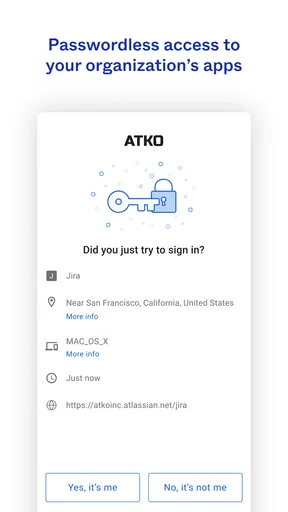
My first tip is to slow down at the approval screen. The fastest secure approval is not the one I tap immediately; it is the one I can connect to a login I just started. If I am not actively signing in, I do not approve the request. This habit is more important than shaving a few seconds from the process.
My second tip is to test the complete path from the device I normally use. I would sign in through the browser or service that I actually need, wait for the request, and confirm that the return to the original session works. Testing only the app’s opening screen does not prove that the full workflow is ready.
My third tip is to plan around device changes before they happen. I would identify the organization’s administrator or help channel, learn how re-enrollment works, and avoid assuming that a backup of the app alone preserves authentication access. This is a subtle distinction that can save considerable time during a phone upgrade or loss.
A fourth useful habit is separating routine convenience from emergency recovery. For daily work, I want the simplest approved method. For emergencies, I want to know the official fallback. Keeping those two ideas separate prevents me from weakening security just because the normal phone is unavailable.
Who should use it, and who should skip it
I would recommend Okta Verify to employees, students, contractors, and other users whose organization uses Okta for multi-factor sign-in. It is a particularly good fit for someone who signs in often, wants a focused confirmation tool, and carries a dependable phone. The free price removes a common barrier, and the Everyone content rating makes it suitable for general audiences.
I would be more cautious about recommending it to someone looking for a universal authenticator for personal accounts. Its value comes from its connection to an Okta-managed identity flow, so it is not the first app I would choose for a mixed collection of unrelated services. I would also hesitate for anyone who cannot reliably access the registered device or who needs a recovery process that works without administrator involvement.
People who strongly prefer entering time-based codes may find a conventional authenticator more familiar. People who want physical-device confirmation may prefer a security key when available. Neither choice makes Okta Verify bad; it simply means the best method depends on the organization’s supported options, the user’s device habits, and the level of convenience versus independence they want.
My performance verdict
After considering speed, repeated sign-ins, stability, device dependence, and recovery, I see Okta Verify as a focused and practical productivity app rather than a feature-heavy security toolbox. Its strongest quality is the reduction of friction at a specific moment: confirming an Okta login without turning authentication into a separate project.
The main weakness is equally clear. The app does not stand alone. Its usefulness depends on an organization’s Okta setup, the phone’s availability, notification delivery, and a recovery plan for device problems. Those dependencies can make an otherwise simple approval feel complicated when something goes wrong.
With that limitation understood, I would recommend it to the right audience. Install it when your workplace or school directs you to use Okta, enroll it before you need urgent access, test the full sign-in flow, and keep the recovery route in mind. For that situation, the best feature is the dependable routine it can create: a quick, deliberate confirmation that fits into the workday without pretending to replace every other security tool.
Okta Inc. has kept the app focused for a long time, and that focus is why I find it easy to explain to a friend. If you need Okta-based multi-factor authentication on a phone you control, it is a sensible free choice. If you need a general authenticator, password manager, or device-independent recovery system, I would look elsewhere or use Okta Verify alongside those tools rather than expecting one app to cover everything.
Privacy and Permissions
See what permissions an app requests and how it handles your data.
- Location
- approximate location (network-based), precise location (GPS and network-based)
- Phone
- read phone status and identity
- Photos/Media/Files
- read the contents of your USB storage
- Storage
- read the contents of your USB storage
- Camera
- take pictures and videos
- Wi-Fi connection information
- view Wi-Fi connections
- Device ID & call information
- read phone status and identity
- Other
- view network connections, pair with Bluetooth devices, access Bluetooth settings, full network access, run at startup, control vibration, prevent device from sleeping, read Google service configuration
Verdict
Strengths of Okta Verify
- Fast push notifications make sign-in approvals quick and convenient.
- Supports number matching to help prevent accidental approval of login requests.
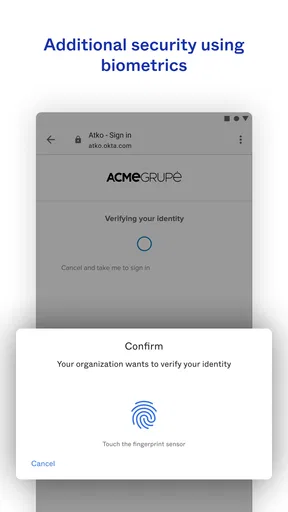
- Works with biometric unlock on compatible phones for added convenience.
- Can generate offline verification codes when push notifications are unavailable.
- Useful for accessing multiple organizations and workplace accounts from one app.
Limitations of Okta Verify
- Requires a compatible Okta account and administrator setup to function.
- Changing or losing your phone can make account recovery more complicated.
- Push approvals depend on internet access and reliable device notifications.
- The app offers limited value for users without Okta-protected services.
- Some sign-in flows may require extra steps after approving the notification.
Similar Picks in This Category
View All
Google Calendar
Google LLC4.6

Google Drive
Google LLC4.3

Google Assistant
Google LLC3.9

Microsoft OneDrive
Microsoft Corporation4.6

Samsung Calendar
Samsung Electronics Co., Ltd.4.1

Microsoft OneNote: Save Notes
Microsoft Corporation4.6
Frequently Asked Questions
What is Okta Verify and what is it used for?
Okta Verify is a security app that helps you confirm your identity when signing in to an organization’s apps, websites, or services protected by Okta. After linking the app to your account, you may approve push notifications or enter a temporary verification code. It is mainly designed for work, school, and business accounts rather than general personal logins.
How do I set up Okta Verify on an Android or iPhone?
To set up Okta Verify, your organization normally provides an activation link, QR code, or setup instructions through the Okta sign-in page. Install the official app from Google Play or the App Store, open it, and follow the enrollment steps. You may need to allow notifications and camera access for QR scanning. Setup cannot usually be completed without administrator-provided account details.
Does Okta Verify require an internet connection or mobile data?
Okta Verify generally needs an internet connection during enrollment and when approving push authentication requests. Wi-Fi or mobile data is commonly required for the app to communicate with Okta’s servers. In some configurations, the app can generate a one-time verification code without an active connection, but this depends on your organization’s security settings and should not be assumed for every account.
Is Okta Verify safe to use, and what permissions does it request?
Okta Verify is built for multi-factor authentication, adding an extra security step beyond a password. It may request permission to send notifications, use the camera for QR-code enrollment, and access device security features. These permissions support authentication rather than ordinary content collection. You should still install it only from the official store and carefully review unexpected sign-in prompts.
What should I do if I lose my phone or Okta Verify stops working?
If your phone is lost, replaced, reset, or no longer receives Okta Verify notifications, contact your organization’s IT or Okta administrator as soon as possible. They can revoke the old device, reset your multifactor enrollment, or provide another approved sign-in method. Avoid repeatedly approving unfamiliar prompts, and do not share verification codes with anyone claiming to offer technical support.
